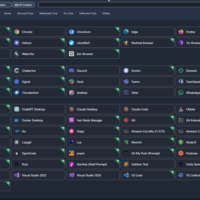

Fresh Windows 10 and Windows 11 installations ship loaded with background telemetry, bundled consumer bloatware, and aggressive update defaults. Chris Titus Tech’s Windows Utility (WinUtil) consolidates app installation, system tweaks, update control, and repair diagnostics into a single zero-install PowerShell GUI.
Whether you are setting up a clean Windows 11 workstation from scratch, tuning a gaming rig for lower background latency, or maintaining multiple machines on your workbench, manually clicking through dozens of Control Panel menus and winget packages wastes hours. WinUtil (`christitustech/winutil`) solves that by giving you a transparent, open-source WPF interface launched directly from an elevated PowerShell session—no permanent installer or background service left behind.
Launch Command (Elevated PowerShell)
Right-click the Start button, open Terminal (Admin) or PowerShell (Admin), and execute the official bootstrap command:
irm "https://christitus.com/win" | iexNote: Always run WinUtil from a standard elevated user terminal rather than the built-in Administrator account so winget package installations resolve user permissions properly.
Core Modules & Capabilities Breakdown
| Tab / Module | Primary Function | Key Operations |
|---|---|---|
| Install | Bulk unattended software deployment via winget and Chocolatey. | One-click batch installs for browsers, 7-Zip, VLC, sysadmin utilities, runtimes, and developer tools without bundled adware. |
| Tweaks | Curated registry, service, and scheduled-task optimizations with preset profiles. | Apply Standard or Minimal presets, disable telemetry, strip Cortana/Copilot/Recall clutter, restore classic right-click menus, and create an automatic restore point first. |
| Config | Toggle legacy Windows features and essential system components. | Enable/disable .NET Framework, Hyper-V, WSL2, Windows Sandbox, Telnet, and SMBv1 from a clean checklist. |
| Updates | Granular Windows Update policy management. | Switch between Default, Security (Recommended)—which delays feature updates by 2 years while keeping monthly security patches—or Disable All. |
| MicroWin | Offline Windows ISO builder & debloater. | Inject drivers, strip bloatware, bypass hardware/Microsoft Account checks, and export a clean custom ISO before OS installation. |
Recommended Safe Workflow
- Verify Your Restore Point: WinUtil automatically triggers a System Restore point before applying tweaks—ensure System Protection is enabled on your
C:drive before running major changes. - Start with the Standard Preset: Under the Tweaks tab, select Standard rather than toggling every checkbox blindly; it trims telemetry and background noise while keeping Windows Store, Xbox services, and printing intact.
- Set Updates to Security Mode: Under Updates, select Security (Recommended) so critical CVEs patch on schedule without unexpected feature upgrades breaking drivers or audio setups.
- Export Your Config JSON: Use the top-bar export button to save your selected apps and tweaks as a
.jsonprofile for instant reuse on future builds.