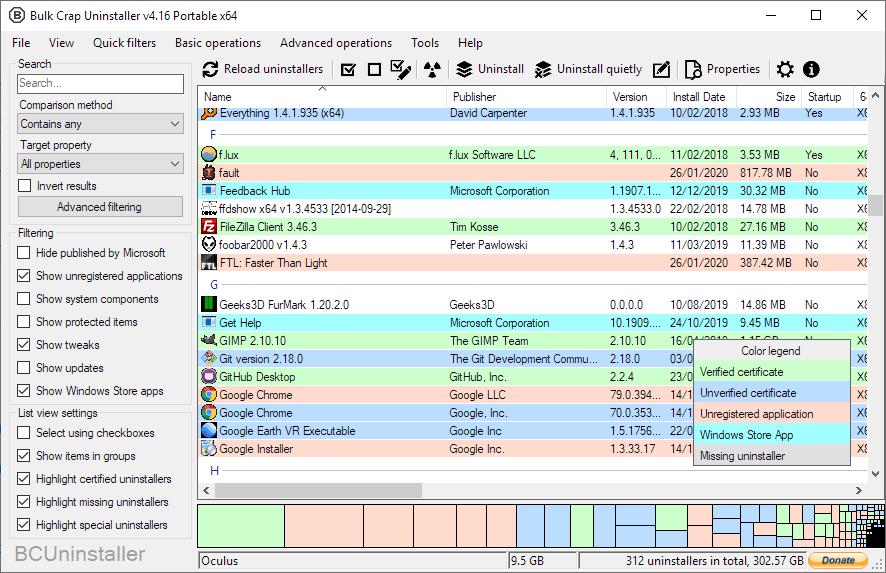

Windows’ built-in Apps & Features menu forces you to click through dozens of legacy wizards one by one—and still leaves behind megabytes of orphaned AppData folders, scheduled tasks, and broken registry keys. Bulk Crap Uninstaller (BCUninstaller / BCU) is a free, open-source power tool built to purge bloatware, Windows Store packages, and stubborn desktop apps in unattended batches.
Remove Windows bloatware, UWP apps, and leftover registry junk in unattended batches with Bulk Crap Uninstaller (BCU). Full guide & comparison.
Why BCUninstaller Beats Standard Uninstallers
True Unattended Batch Removal
Queue 20+ preinstalled OEM apps at once. BCU automatically chains their silent uninstall flags and handles confirmation prompts without babysitting every wizard.
Confidence-Rated Junk Cleanup
After the native uninstaller finishes, BCU scans the filesystem and registry for leftover directories, services, and keys—color-coding each match from Very Good to Questionable so you never nuke shared system files.
Deep Package Detection
Detects standard MSI/EXE installers alongside Microsoft Store (UWP) provisioned apps, Winget packages, Chocolatey installs, Steam games, and portable apps without registry entries.
BCUninstaller vs. Revo Uninstaller Free vs. Geek Uninstaller
Here is how BCU compares to the two other most popular free Windows uninstallers:
| Feature | BCUninstaller | Revo Uninstaller Free | Geek Uninstaller |
|---|---|---|---|
| Open-Source & Free | Yes — 100% FOSS, zero ads | Freemium (Pro features locked) | Freeware (closed source) |
| Multi-App Queue / Batch Mode | Yes — full unattended queue | Pro version only | Single app at a time |
| Windows Store (UWP) Bloatware | Full removal + provisioned apps | Supported | Supported |
| Orphan Confidence Scoring | Yes — color-coded safety tiers | Tree view only | Basic leftover scan |
| CLI / Scriptable Automation | Yes (BCU-console.exe) | Pro version only | No |
Safe De-Bloating Workflow
- 1. Create a Restore Point: Always let BCU trigger a Windows System Restore snapshot when prompted before running a large batch cleanup.
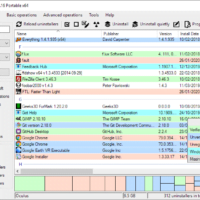
- 2. Filter & Queue Targets: Use the left sidebar filters to hide Microsoft system components, check the boxes next to unwanted OEM utilities, and click Uninstall Quietly.
- 3. Purge Verified Leftovers: When the post-uninstall junk scanner pops up, stick to items marked Good or Very Good, verify the folder paths, and click Delete Selected.