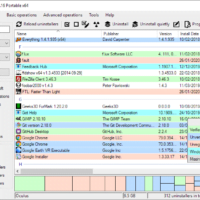

Even on multi-terabyte NVMe drives, Windows hides storage hogs inside nested AppData caches, Docker virtual disks, and orphaned game folders—and File Explorer refuses to show folder sizes in real time. TreeSize Free by JAM Software solves that instantly by reading the NTFS Master File Table (MFT) directly to map every gigabyte across your drives in seconds.
Find hidden storage hogs on Windows in seconds with TreeSize Free. Learn how direct NTFS MFT scanning works and how it compares to WizTree & WinDirStat.
Why TreeSize Free Belongs in Every Windows Toolkit
Near-Instant MFT Drive Scans
By parsing the NTFS Master File Table directly instead of crawling directories sequentially, TreeSize maps a 2 TB SSD in a few seconds—sorted from largest folder to smallest.
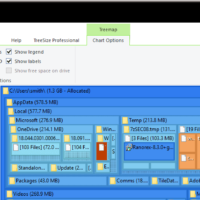
Interactive Hierarchical Treemap
Switch to the visual treemap view to spot bloated .vhdx images, shader caches, or forgotten ISO archives at a single glance without digging through subtrees.
Context Menu & Portable Ready
Integrates straight into the Windows Explorer right-click menu (“Scan with TreeSize Free”) and ships as a standalone portable ZIP for USB technician drives.
TreeSize Free vs. WizTree vs. WinDirStat
Here is how TreeSize Free compares against the other top disk-space analyzers on Windows:
| Feature | TreeSize Free | WizTree | WinDirStat |
|---|---|---|---|
| Scan Speed (NTFS MFT) | Very Fast (seconds) | Fastest (raw MFT reader) | Slow (legacy Win32 directory walk) |
| UI & Explorer Integration | Polished ribbon UI + right-click menu | Functional utilitarian UI | Dated classic interface |
| Visual Treemap | Yes — interactive drill-down | Yes — color-coded by extension | Yes — cushion treemap |
| Portable Edition | Yes — official portable ZIP | Yes — portable ZIP | PortableApps wrapper |
| Commercial / Business Use | Free for personal & commercial use | Free for personal use only | Open Source (GPLv2) |
Pro Tip: Run as Administrator
Always launch TreeSize Free with Administrator privileges when scanning your C:\ boot drive—otherwise Windows blocks access to System Volume Information, Windows.old, and protected WSL2/Hyper-V disk images where tens of gigabytes frequently hide.